This post describes how to prepare the Admin PC for the attack scenario, to simulate domain activities from Admin PC.Assuming you already finished lab setup 1/3 and setup an Active Directory join workstation (English OS) you have to do the following steps on your Admin PC.
- Add Admin & Helpdesk Groups to the local administration group
- Create a directory & download files from GitHub
- Create an shortcuts on the public desktop
Add Admin & Helpdesk to the local administration group
One option would be via PowerShell
#if needed
#Set-ExecutionPolicy -ExecutionPolicy RemoteSigned

# Add Helpdesk and PAW Administrators to local Administrators group
Add-LocalGroupMember -Group "Administrators" -Member "SG-AS2Go-Helpdesk"
Add-LocalGroupMember -Group "Administrators" -Member "SG-AS2Go-Admins"

# Check the membership
Get-LocalGroupMember -Group "Administrators"
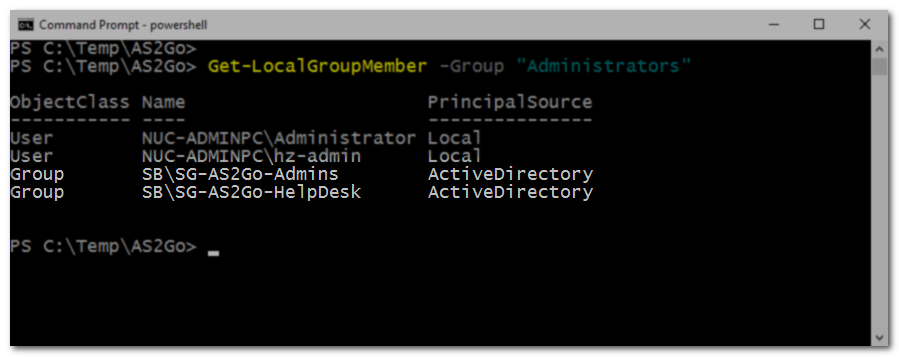
Alternatively, you can also use the Local User And Group Management Console (lusrmgr.msc).
Create directory and download GitHub package
Create the directory
c:\temp\AS2GoDownload files from my GitHub Prepare Admin PC ⬈ repository and save them in the previously created directory.
C:\Temp\AS2Go> dir

 Directory of C:\Temp\AS2Go

01/05/2022  02:56 PM    <DIR>          .
01/05/2022  02:56 PM    <DIR>          ..
                                       Create-DA-Tickets.ps1
                                       Create-Shortcut.ps1
                                       my-passwords.txt
Create the Shortcut via PowerShell
Run the Create-Shortcut.ps1 PoSH script with administrator rights.
$SourceFilePath = "C:\Temp\AS2Go\Create-DA-Tickets.ps1"
$ShortcutPath = "C:\Users\Public\Desktop\Create Tickets for PtT.lnk"
$WScriptObj = New-Object -ComObject ("WScript.Shell")
$shortcut = $WscriptObj.CreateShortcut($ShortcutPath)
$shortcut.TargetPath = $SourceFilePath
$shortcut.Save()
The code creates an shortcut on the Public Desktop.
Test the PoSH Script
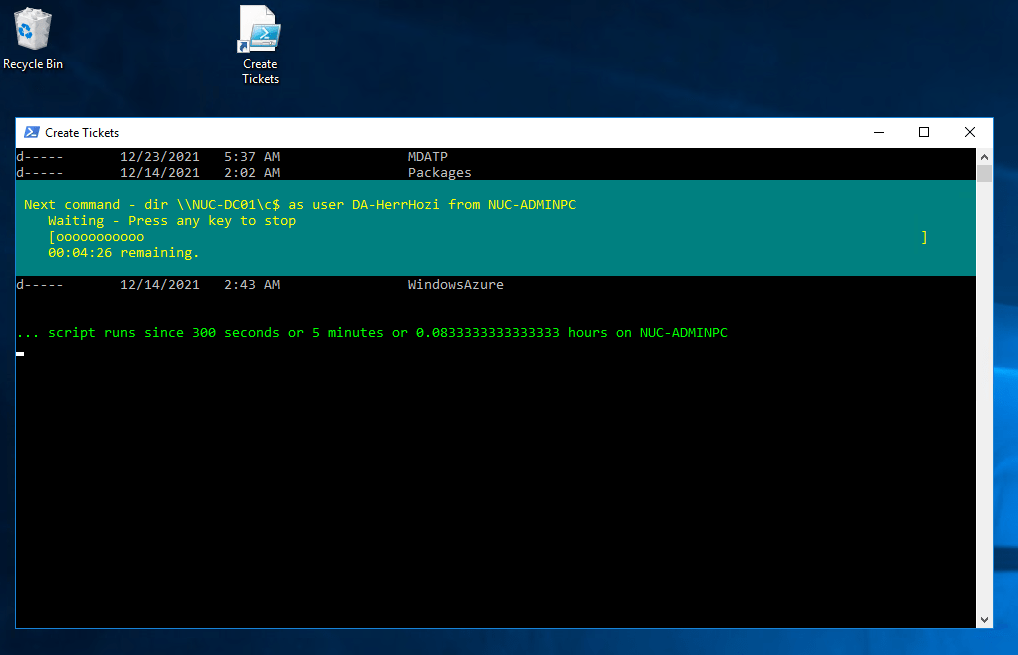
To simulate domain activities from Admin PC, right click on the new Short Cut > Run with PowerShell > a new Windows came up.
 Herr HoZi
One thought on “AS2Go | Lab Setup 2/3 | Admin PC”